Invoice Overview
The Invoice Overview page provides a complete view of an individual invoice, allowing you to manage payments, track status, send reminders, view transaction history, and perform other invoice-related actions.
Header Actions
The header section provides quick access to common invoice actions.
Available Actions
List
Returns to the Invoice List page.
Edit
Opens the invoice editor, allowing you to modify invoice details.
Preview
Opens the invoice preview page for reviewing, downloading, printing, or sharing the invoice.
Mark as Sent
Updates the invoice status to Sent, indicating that it has been delivered to the customer.
Cancel Invoice
Cancels the invoice and updates its status accordingly. Cancelled invoices can no longer be processed for payment.
Record Payment
Allows you to record a payment received against the invoice.
Settle Now
Marks the invoice as settled by recording the outstanding balance as paid.
Summary metrics
The overview page shows:
| Metric | Meaning |
|---|---|
| Total Amount | Invoice grand total. |
| Paid | Total recorded non-settlement payments. |
| Outstanding | Remaining balance. |
| Status | Draft, Sent, Partially Paid, Paid, Overdue, or Cancelled. |
Record payment
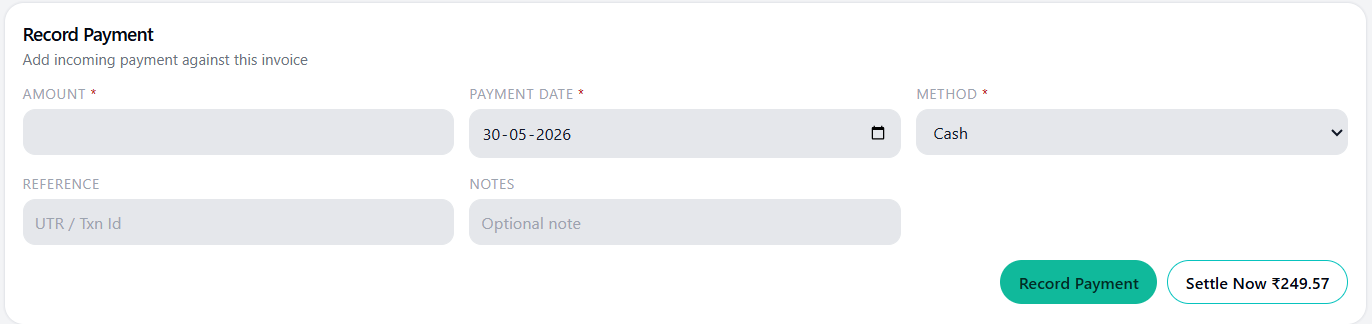
To record a payment:
- Open invoice overview.
- Click Record Payment.
- Enter amount.
- Select payment date.
- Select method.
- Add reference number if required.
- Add optional notes.
- Save.
Supported payment methods:
-
Cash
-
Bank Transfer
-
UPI
-
Card
-
Other
Validation rules
The payment form checks:
- Amount is required.
- Amount must be valid.
- Payment cannot exceed outstanding amount.
- Payment date is required.
- Payment method is required.
- Reference is required for some non-cash methods.
Settle remaining balance
Use Settle Now when a small balance should be closed by adjustment or round-off.
The app records settlement as a payment entry with method/notes showing it is a settlement.
Watch the demo video below to learn the payment recording process
Cancelled invoice behavior
Cancelled invoices cannot accept new payments.
Payment history
Payment history shows:
- Date
- Amount
- Method
- Reference
- Notes
- Receipt action
Users can view receipt for each recorded payment and delete a payment if it was entered wrongly.
Reminders panel
The overview page also displays reminder status:
- Next reminder
- Pending/processing count
- Sent count
- Failed count
- Reminder history