Store Details
Store Details is used to update your store profile information, branding, and account-level actions.
What the feature does
- Updates the store profile used in receipts and documents
- Stores address and contact information
- Provides account and transaction cleanup actions where allowed
Screen: Store Details
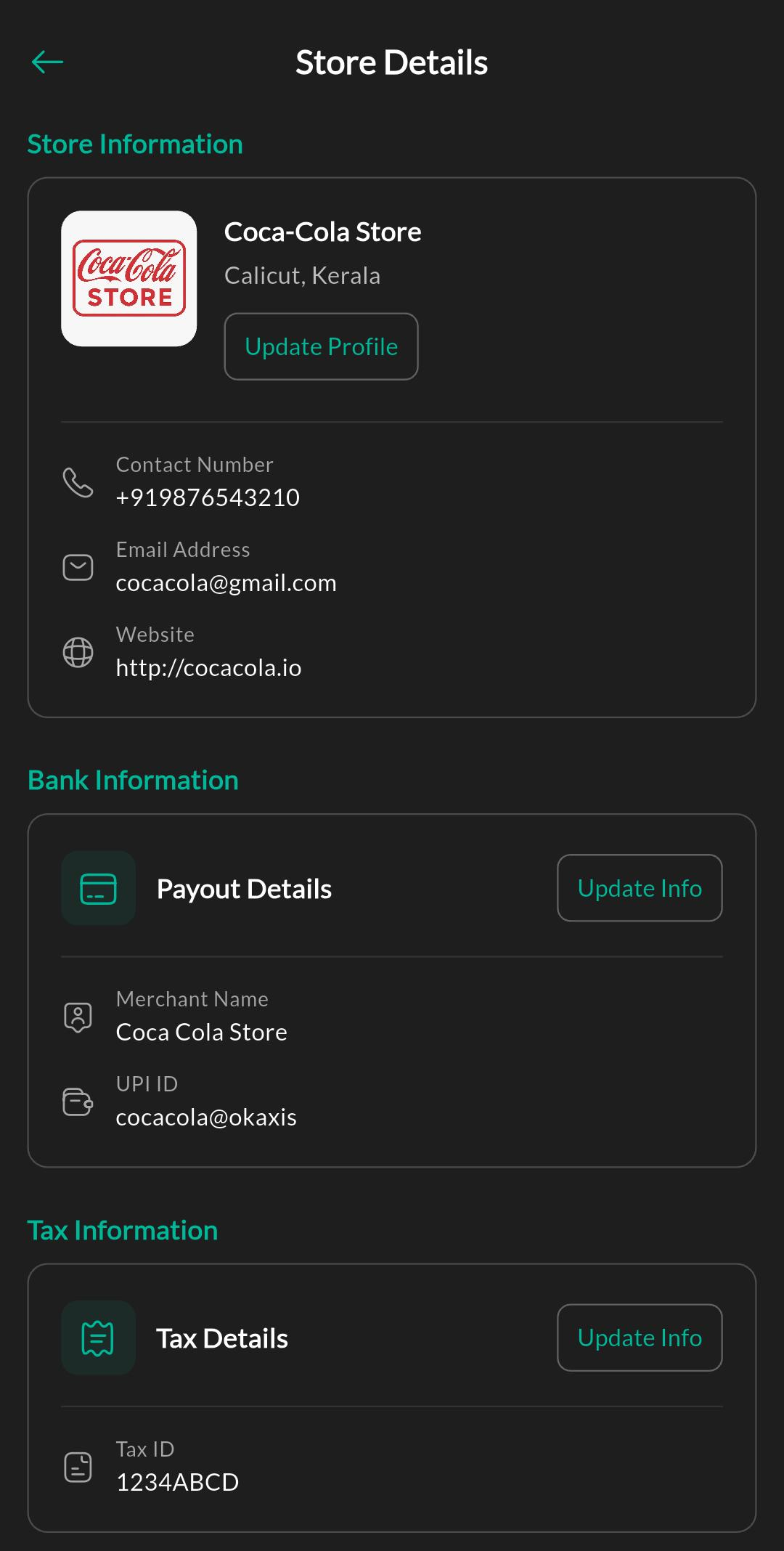
Purpose
Review the current store profile, business information, and high-level configuration for the outlet.
Screen: Update Store
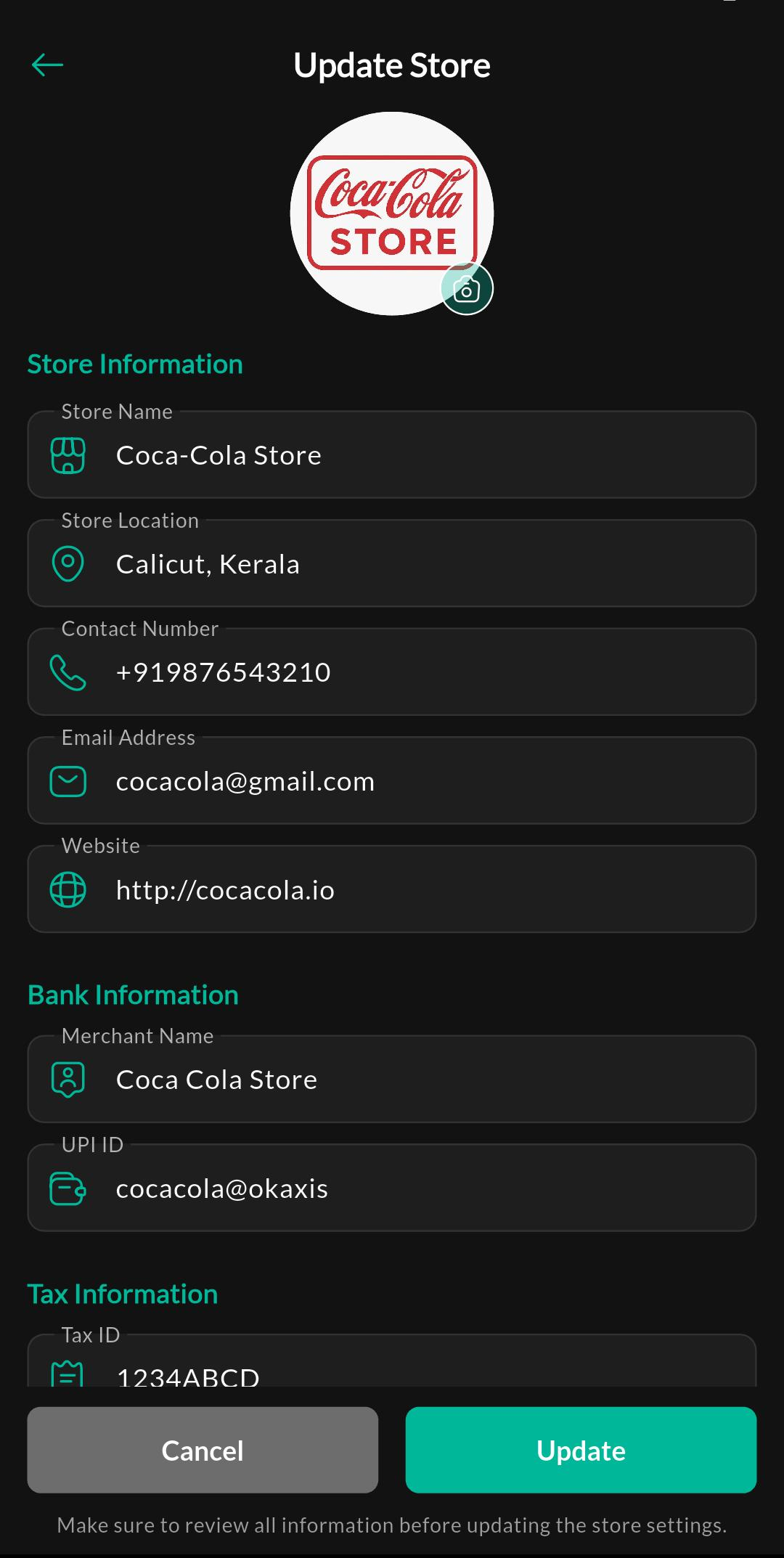
Purpose
Use this screen to update the store profile, contact information, and branding details.
Screen: Delete Transactions
The Delete Transactions feature allows you to clear historical transaction data from your Desko POS system. Because this action is permanent and irreversible, it must be used with extreme caution.
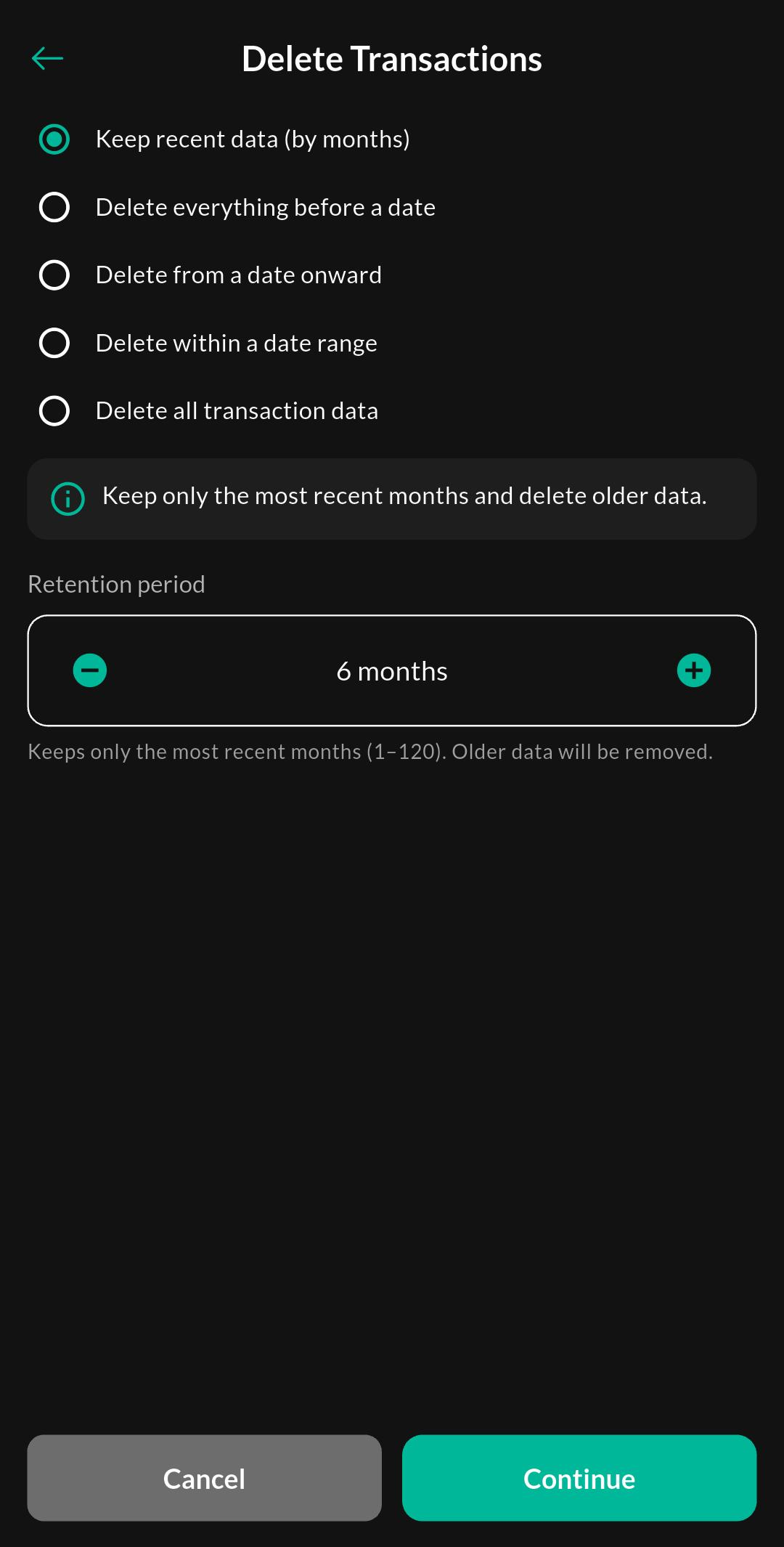
Deleting transactions permanently removes them from the database. They cannot be recovered once deleted. Always export your data and take a backup before proceeding.
Required Permissions
Only users with the Owner or Admin roles can access the Delete Transactions screen. Cashiers and standard staff do not have permission to perform data deletion.
Deletion Options
You can choose exactly what data to delete using the following modes:
- Keep recent data (Months): Retains data for the specified number of recent months and deletes everything older.
- Delete everything before date: Deletes all transactions that occurred before the selected date.
- Delete from date onward: Deletes all transactions that occurred on or after the selected date.
- Delete within range: Deletes transactions that fall exactly between the specified “From” and “To” dates.
- Delete all transaction data: Completely wipes all transaction history from the system.
Affected Data
Deleting transactions will permanently remove:
- Generated bills and invoices
- Customer payment history linked to those bills
- Close cash and shift records for the deleted period
Note: Your product catalog, customer list, and store settings are not affected by this action.
Audit & Tax Risks
Deleting transaction data may cause discrepancies in your financial records. If your store uses ZATCA or GST Filing integrations, deleting synced transactions can lead to severe audit mismatches. Please consult with your accountant before clearing data.
Recommended Support Flow
Before proceeding with bulk transaction deletion, we highly recommend:
- Exporting all relevant sales and accounting reports for your records.
- Contacting Desko Support to verify if deleting data is the best solution for your needs (e.g., if you are trying to free up storage space or reset after a testing phase).
Screen: Delete Account
The Account Deletion screen allows you to permanently close your Desko POS account and erase your business data from our servers.
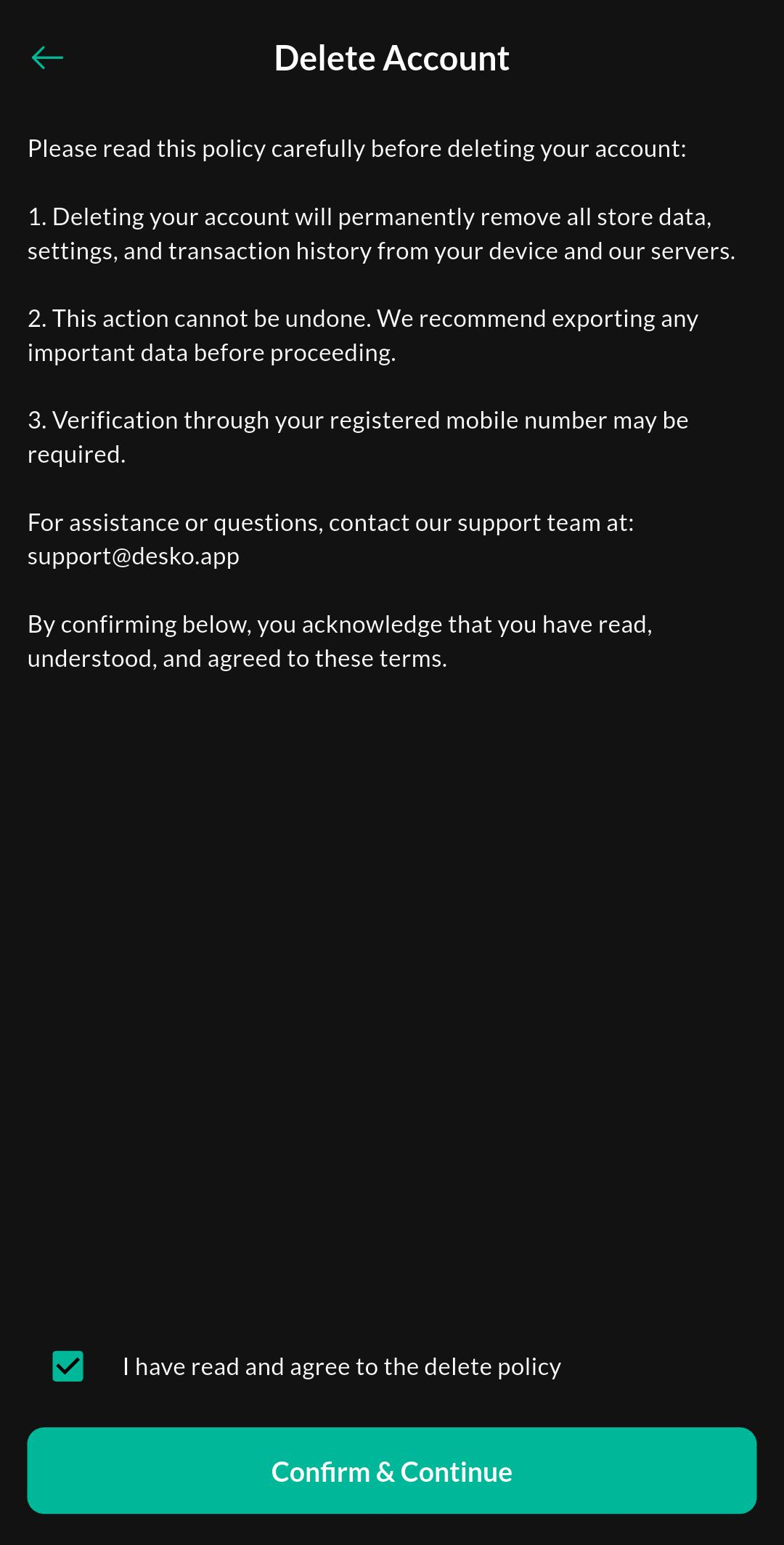
Account deletion is an irreversible action. Once the process is complete, all your store data, products, bills, and settings will be permanently wiped and cannot be recovered.
Required Permissions
Account deletion can only be initiated by the Primary Store Owner. Sub-users and staff accounts cannot delete the store workspace.
Deletion Process & Safety Checks
To ensure that accounts are not deleted accidentally, the process includes multiple safety steps:
- Policy Agreement: You must review and agree to the deletion policy, acknowledging the permanent loss of data.
- Phone Verification: You must enter the primary phone number registered with the account.
- OTP Verification: A 6-digit One-Time Password (OTP) will be sent to your registered number via WhatsApp. You must enter this OTP to finally verify and delete the account.
Backup Expectations
Before deleting your account, you are expected to:
- Export all Sales Reports and Accounting Data.
- Backup your Customer List and Product Inventory.
- Download any required Tax Reports (ZATCA / GST).
Audit & Compliance Risks
By deleting your account, you lose access to all historical data. If you are ever audited by tax authorities, you will no longer be able to pull past receipts or filing details from Desko. Ensure you have hard copies or secure local backups of all necessary compliance documents.
Recommended Support Flow
If you are closing your account due to an issue or missing feature, we would love the opportunity to help you resolve it.
We strongly recommend:
- Contacting Desko Support to discuss any challenges you are facing.
- Speaking with our team to see if pausing your subscription or downgrading your plan is a better alternative to permanent deletion.
- Once decided, requesting a data export guide from support to ensure you haven’t missed any crucial business data before initiating the final OTP verification.
Related settings
Troubleshooting
Refresh the page after saving and confirm you have permission to edit store settings.