Control Copy Settings
Control Copy Settings defines how restaurant control copies are routed to printers. It is used when a store needs a separate kitchen, bar, or floor-specific print path in addition to the main receipt flow.
What the feature does
- Sends a control copy to the configured printer for the selected service mode or floor
- Keeps printer routing separate from the physical printer pairing screen
- Lets you manage print rules centrally for restaurant operations
Prerequisites
Before you configure control copy, make sure:
- The Restaurant add-on is active
- Restaurant mode is enabled for the store
- Printers are already paired in the device printer settings
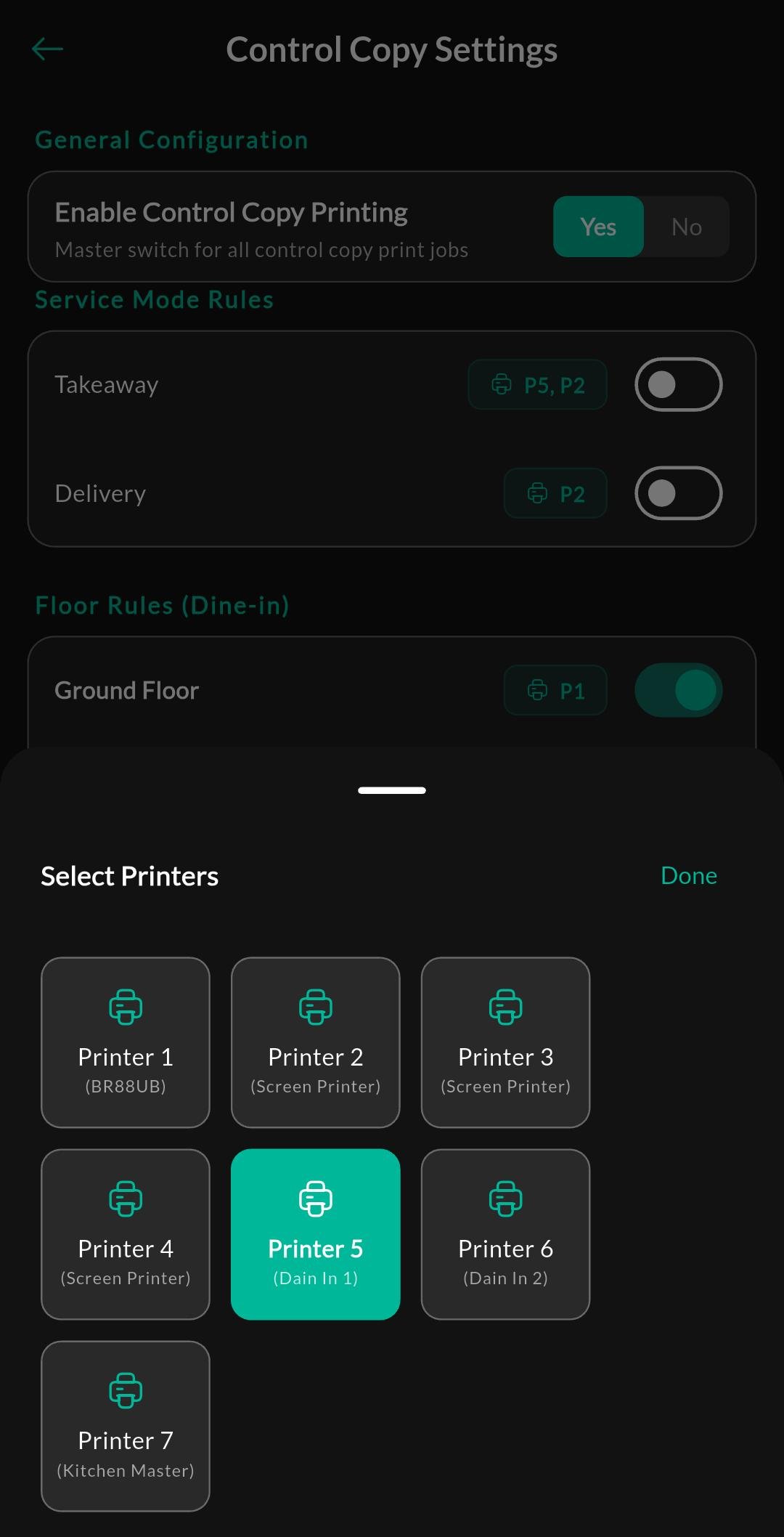
- You know which logical printer number should receive each control copy rule
- Floors and service modes are created if you plan to route by floor or service type
Setup process
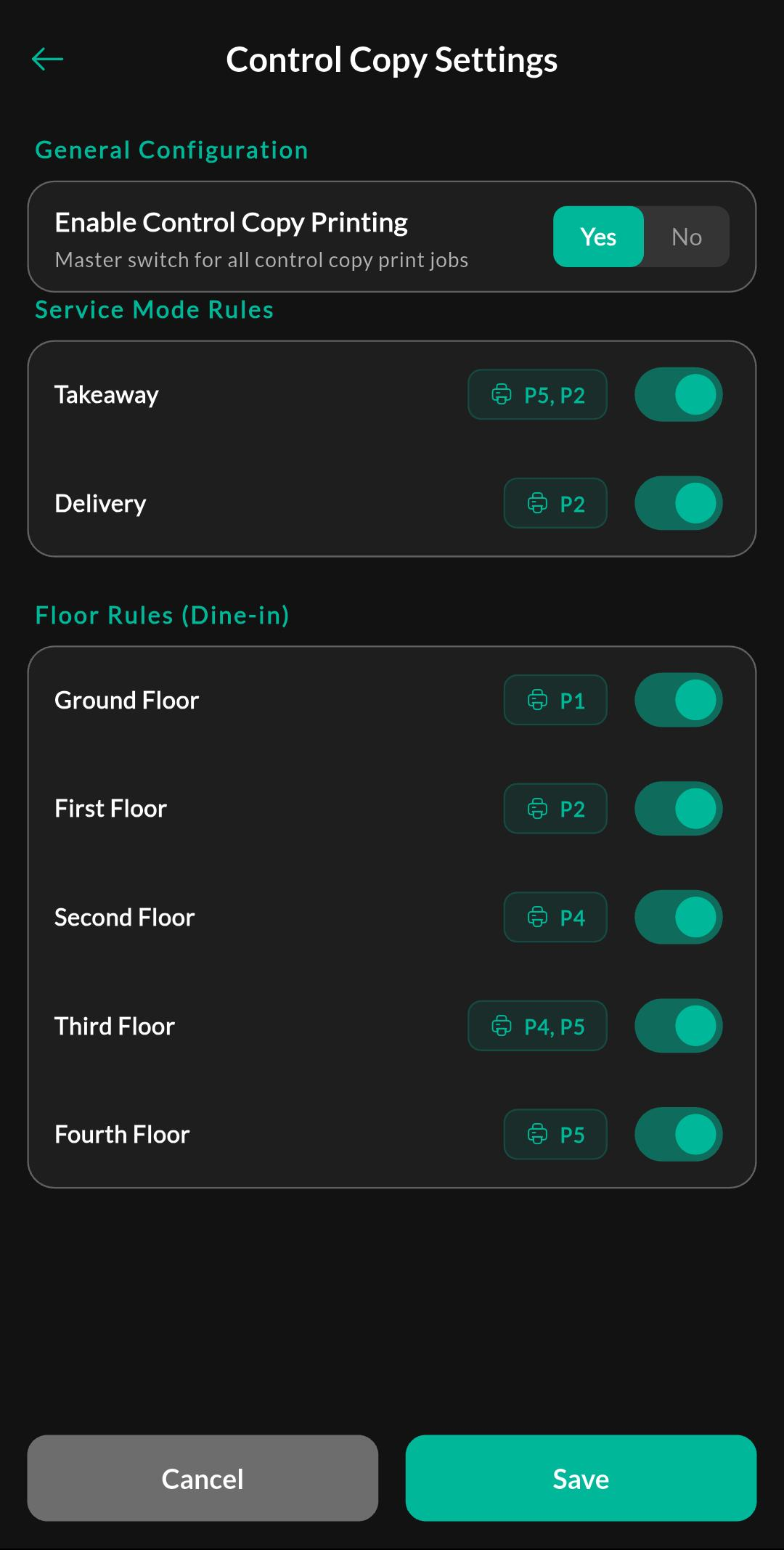
- Open Menu > Restaurant Settings > Control Copy Settings.
- Turn on Control Copy Enabled.
- Add or review service mode rules, such as Takeaway or Delivery.
- Add or review floor rules for dine-in tables.
- Map each rule to the correct printer number.
- Save the changes.
Screenshots
Control Copy overview
Printer mapping
How to use
- Create or update an order in Billing.
- Select the correct service flow or table.
- Save or send the order.
- The app routes the control copy using the rule that matches the active service mode or floor.
Related settings
Troubleshooting
Control copy does not print
Check that the printer is paired on the device, the printer number is correct, and the matching rule is enabled. Also confirm that Restaurant mode is active for the store.
Wrong printer receives the order
Verify that the service mode or floor rule is mapped to the intended logical printer number. If the printer list order changed, remap the rule and save again.