Navigation & Access
Desko POS navigation is driven by the Home screen, which is a horizontal PageView containing three main screens/tabs.
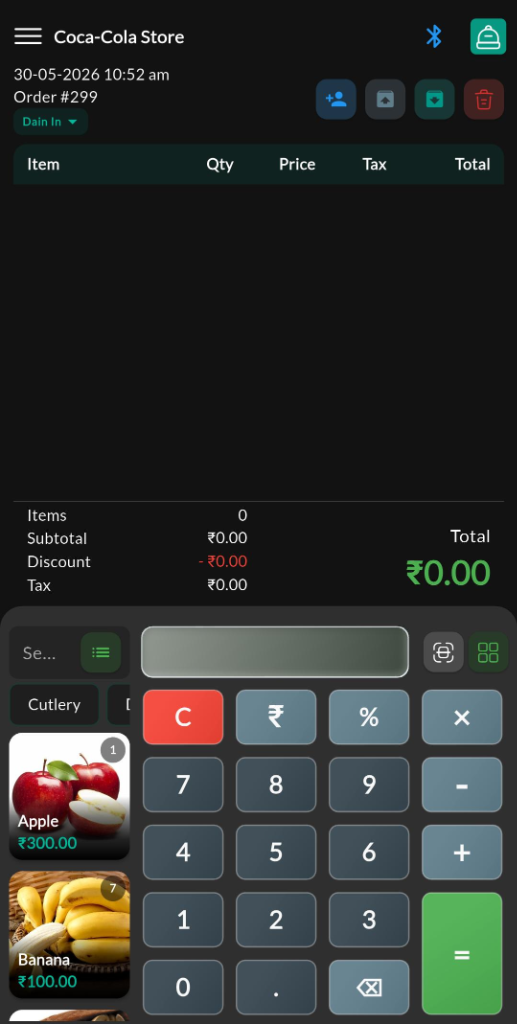
By default, when you sign in, you are presented with the Standard Mode Billing (center) screen.
- Swipe right (or use keyboard arrows) to open the Menu screen from the left.
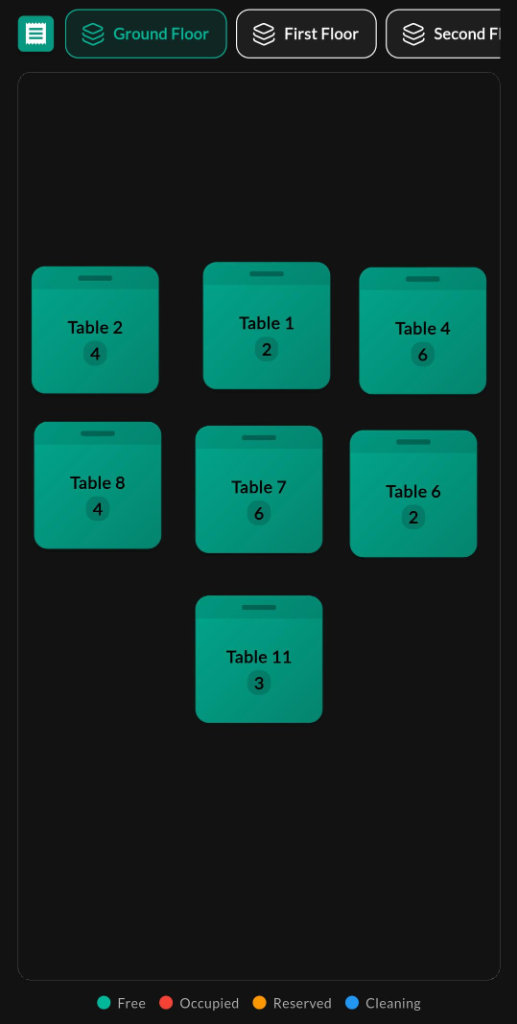
- Swipe left (or use keyboard arrows) to open the Restaurant Mode Billing screen from the right (if the Restaurant add-on is active).
Screen: Home (Tabs)
Purpose
Understand the three main home screens and how users move between navigation, standard billing, and restaurant billing.
1. Menu (Left Screen)
The main settings, configuration, and navigation dashboard. It contains the following categories:
- Sales: Bills, Customers, Close Cash
- Reports: Reports, Charts
- Stock: Products, Taxes, Price List
- Devices: Printers, Weighing Scale, Screen Printer, Label Printer
- Restaurant Settings (add-on): General Settings, Control Copy Settings, Portions, Floor Plan
- Billing & Subscription: Subscription, Active Addons
- Accounting (add-on): Expense, Income, Customer Payments, Account Heads
- Settings: Store Details, Users & Roles, Localisation, Payment Methods, Print Templates, Report Templates, Media Assets
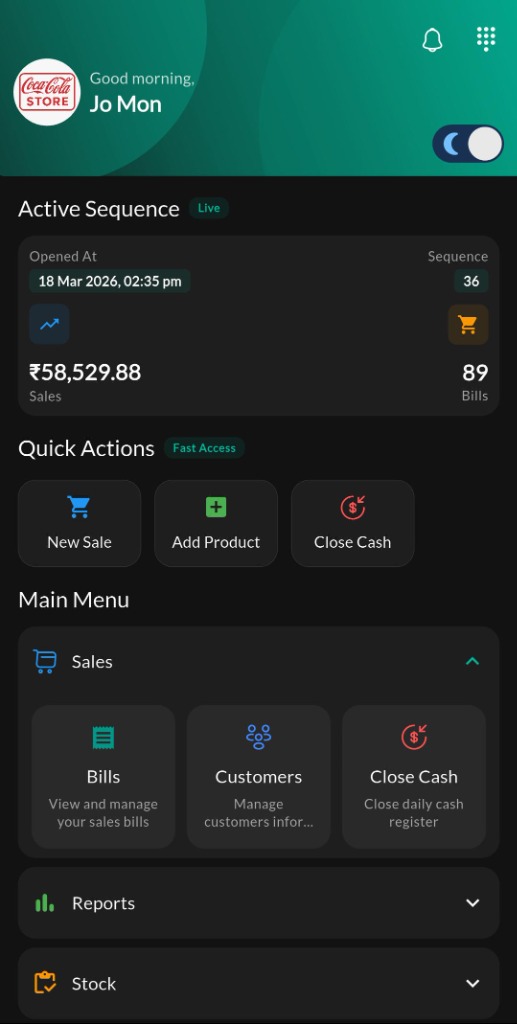
Important behavior (permissions & add-ons)
- Role Permissions: Menu sections and tiles are dynamically filtered by permissions. For example, Bills / Close Cash require sales-related permissions, and Users & Roles requires user management permissions.
- Add-ons: Features like Restaurant (Portions, Floor Plan) and Accounting (Expense/Income) only appear when their respective add-ons are active.
2. Standard Mode Billing (Center Screen)
The default retail billing screen featuring a numerical keypad and quick product selection.
3. Restaurant Mode Billing (Right Screen)
The floor layout displaying tables, floor sections, and table occupancy status.
How to use
- Swipe left/right (or use keyboard arrows) to move between tabs.
- Use Menu -> Quick Actions to jump into common tasks like New Sale and Add Product.
If you cannot see a screen that another user can, check your role permissions (Menu -> User & Roles) or add-on activation (Menu -> Subscription / Active Addons).