Create Estimate
Estimates are quotations provided to customers before an invoice is issued. They help businesses communicate pricing, products, services, and terms before work begins or a sale is confirmed.
What Users Can Do?
- Create a new estimate
- Add customer information
- Add products or services
- Apply taxes and discounts
- Customize estimate terms and notes
- Preview the estimate before sending
- Download or print the estimate
- Share estimates with customers
- Convert an approved estimate into an invoice
Estimates help customers review costs and approve proposed work before an invoice is generated.
Estimate statuses
| Status | Meaning |
|---|---|
| Draft | Estimate is being prepared. |
| Sent | Estimate has been shared with customer. |
| Accepted | Customer accepted the quote. |
| Rejected | Customer rejected the quote. |
| Expired | Valid-until date has passed. |
| Converted | Estimate has been converted to invoice. |
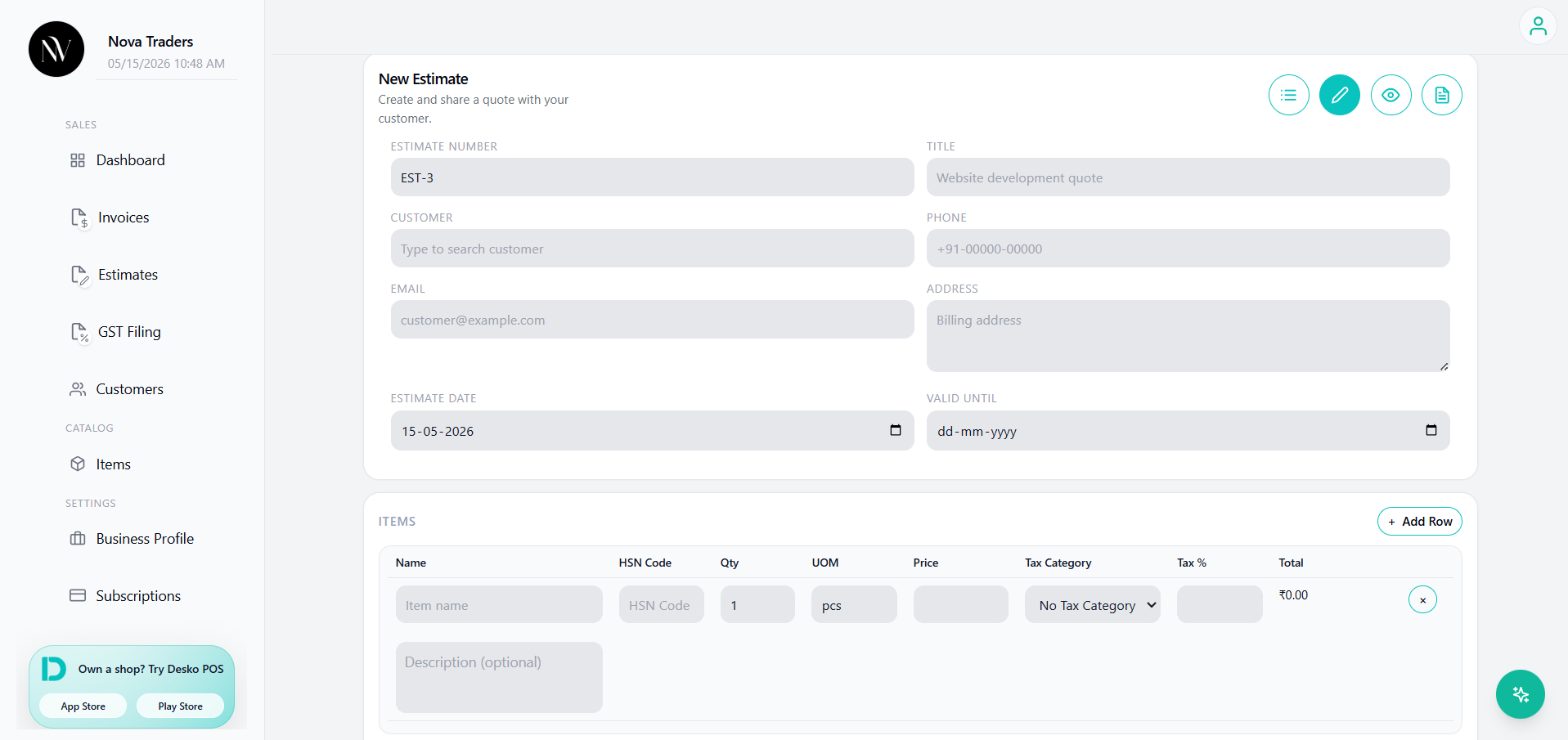
Create estimate fields
An estimate can include:
- Estimate number
- Title
- Customer details
- Phone
- Address
- Estimate date
- Valid until date
- Discount
- Status
- Line items
- HSN code(India)
- Tax category
- Tax percentage
- Notes
Estimate actions
Available actions:
- Estimate List
- Edit Estimate
- Preview Estimate
- Estimate Overview
- New Item
- Add Row
- Duplicate
- Clear
- Save
- Open AI assistant, if enabled
Rejection details
When marking an estimate as rejected, users can choose a reason:
- Price too high
- Requirement changed
- Selected another vendor
- Budget not approved
- Need modification
- Other
For “Other”, a comment is required.
Convert estimate to invoice
Conversion creates a new invoice from the estimate.
What carries over:
- Customer/receiver details
- Items
- Quantity
- Price
- HSN
- Tax category/tax percentage
- Notes/terms
- Currency
- Template-related data
- Source estimate link/reference
What changes:
- New invoice number is generated
- Invoice date defaults to current date
- Invoice status starts as draft
- Payment tracking starts only after conversion
Conversion restrictions
Estimate conversion is blocked when:
- Estimate is expired
- Estimate is rejected
- Estimate status is not draft, sent, or accepted
Watch the demo video below to learn the estimate creation process
Best practices
- Use estimates for quotes that need customer approval.
- Set realistic valid-until date.
- Mark sent/accepted/rejected properly to track sales conversion.
- Convert only the final approved estimate.